
Keep diagrams in Markdown
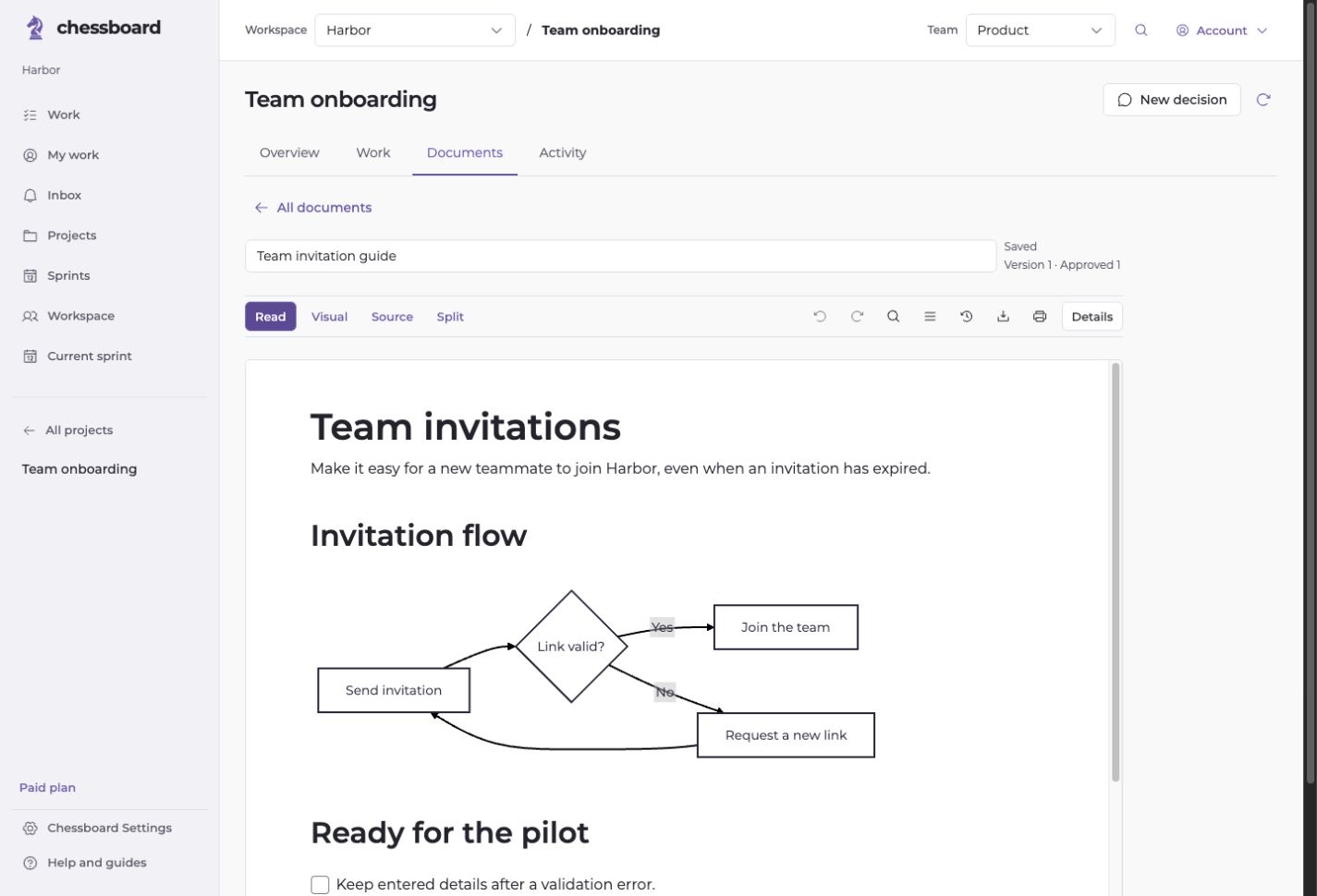
Use a fenced Mermaid block to describe a flow or sequence, then view the result inside the document. The writing tools offer templates for supported diagram types, including flowcharts, sequence diagrams and timelines.
Select a diagram to edit its source, expand its view or remove it. Diagram edits are part of the document’s Undo history.
Start with exact entries
Local builders turn your entered steps, connections or dated events into supported flowchart and timeline Markdown. Templates and builders do not call a model or spend AI credits.
Source editing remains available when a diagram needs a change that the builder does not describe.
Organize source material with optional AI
Supply the actual steps or dated facts, choose a supported output type, and check the credit quote. Chessboard validates the result and displays a preview before you choose whether to insert it.
AI helpers currently cover simple flowcharts and timelines. The editor supports additional diagram templates independently of those helpers.
Keep the source with the project
Your diagram remains text inside Markdown, alongside your project notes. Read it in the app, reference its document from a task or export the Markdown.
Diagrams explain the project. Their labels and source do not grant permissions or authorize execution.