
From project context to the next piece of work.
Keep the decisions, documents and tasks behind a project close to the people and tools doing the work.
Write the context beside the work.
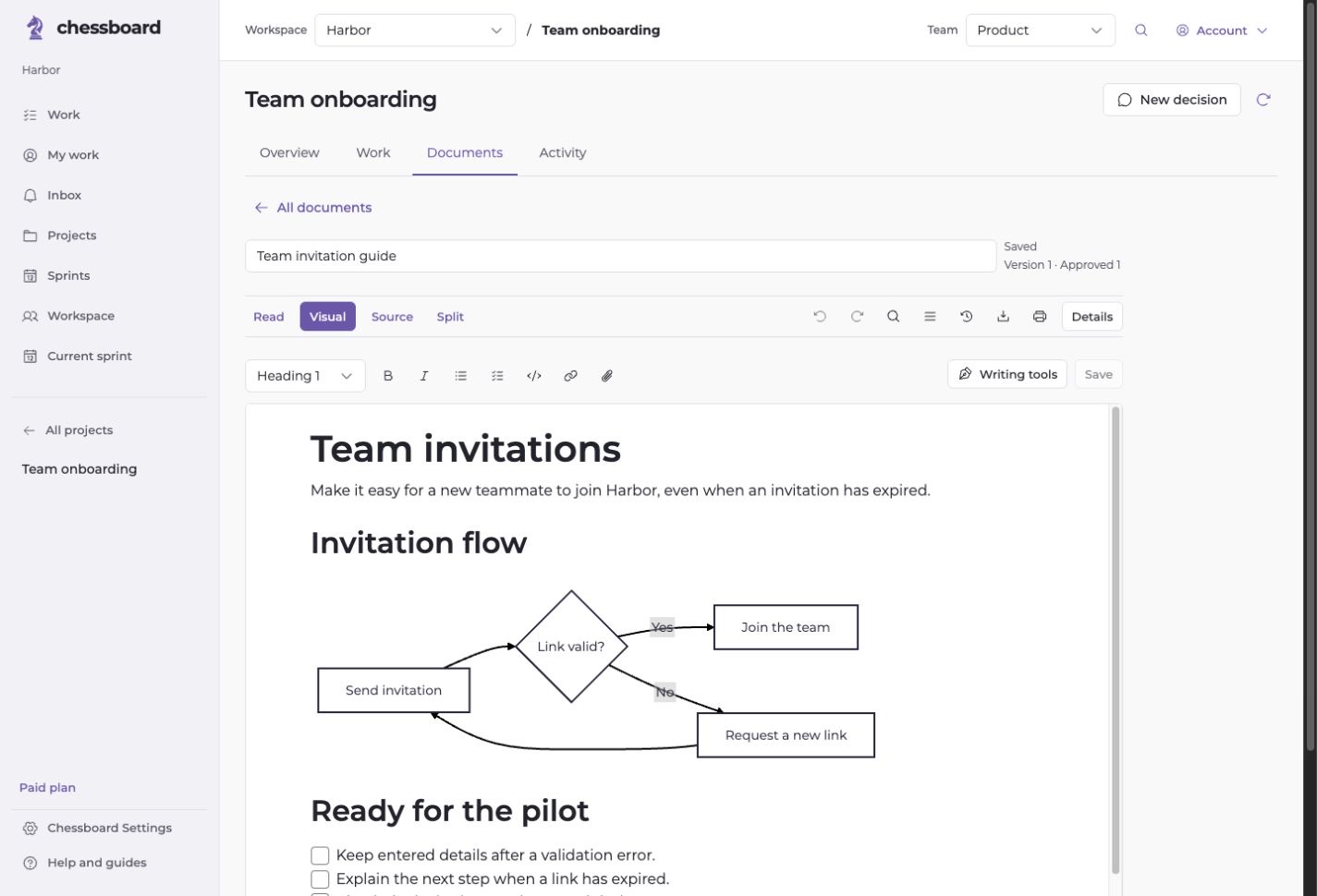
Keep project notes, decisions, handoffs and release drafts in your project’s Documents area. Use Visual or Source editing, a focused reader, or a desktop split view.
Add tables, code, equations and Mermaid diagrams with local writing tools. Paid workspaces can author documents; authorized Free members can read and export existing documents.
Make the next step concrete.
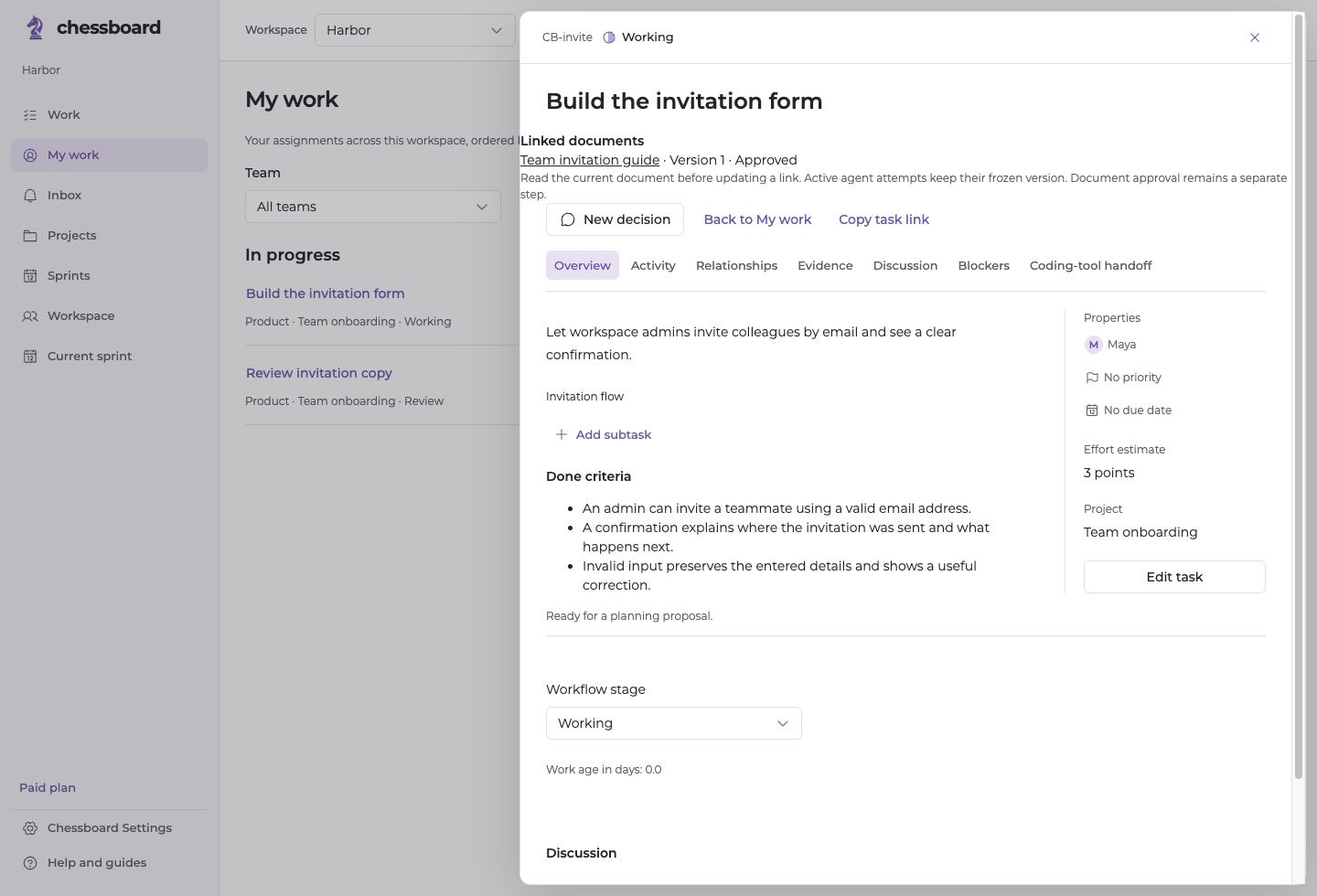
Use ordinary tasks for engineering, design, operations or a marketing launch. Give work an owner, priority, estimate and clear completion criteria.
Link a task to a document version or section so its context stays inspectable. Later document changes can be reviewed without silently replacing a committed reference.
Choose work that fits your team.
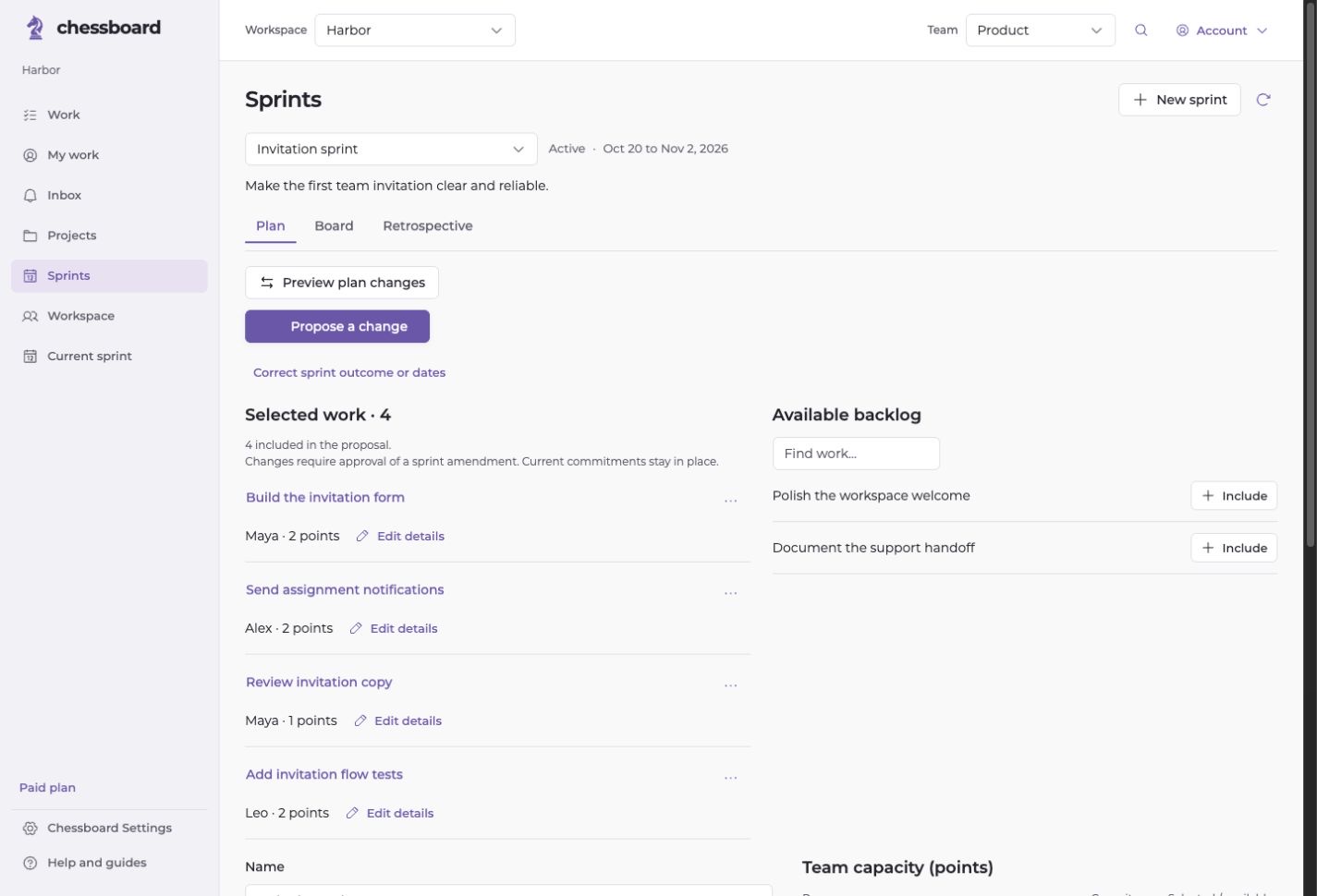
Review available capacity, owners and dependencies before committing to a sprint. Reserve room for review and interruptions.
The team approves its plan. At the end of a sprint, record observations and decide what unfinished work belongs in the next one.
Bring your AI tools into the project.
Connect compatible clients through MCP. Give an agent access to selected projects and explicitly shared documents.
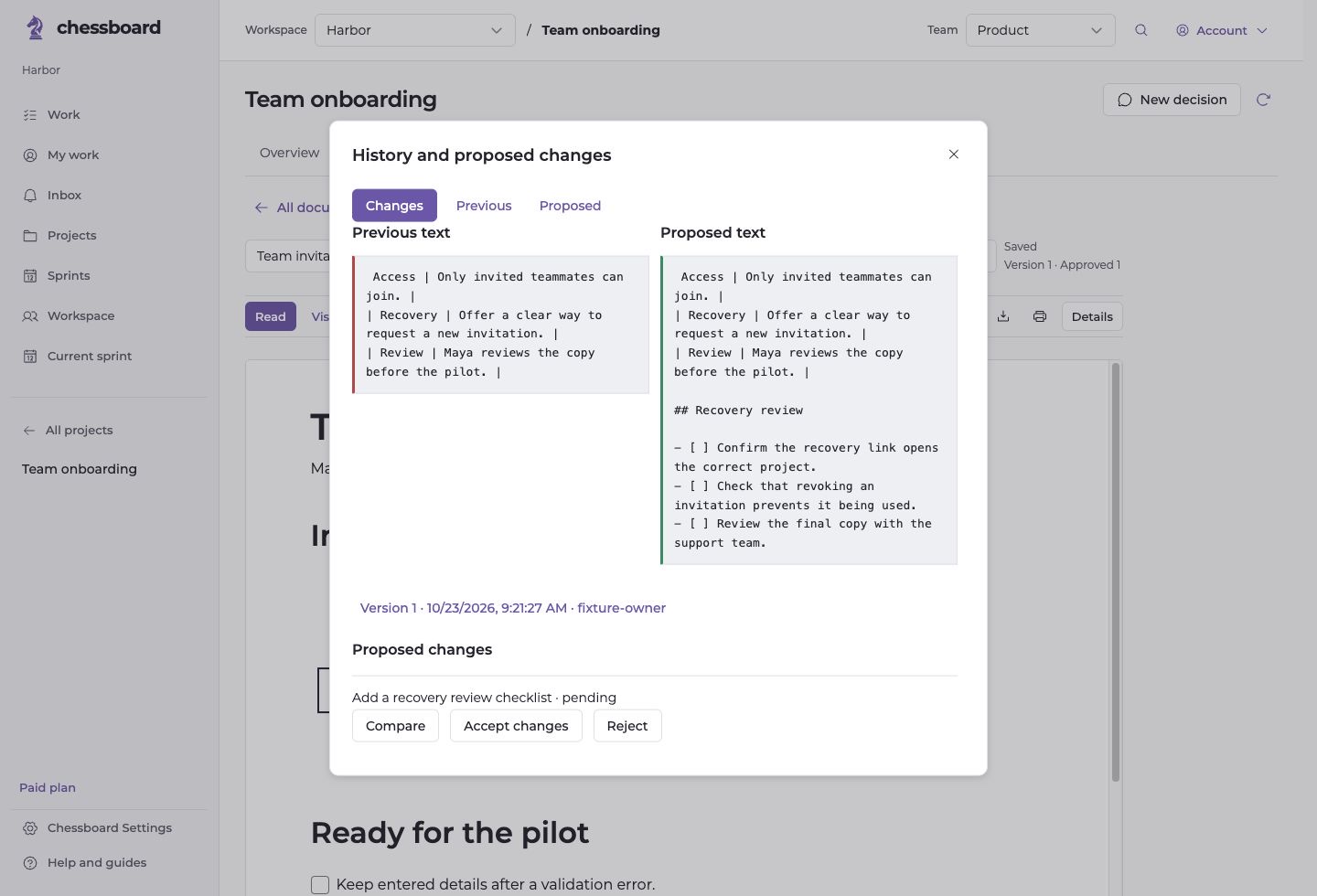
Agents can use permitted context and propose document changes. A person reviews changes to existing documents and retains approval authority. Your connected tool’s model subscription remains separate.
Use AI when it earns its place.
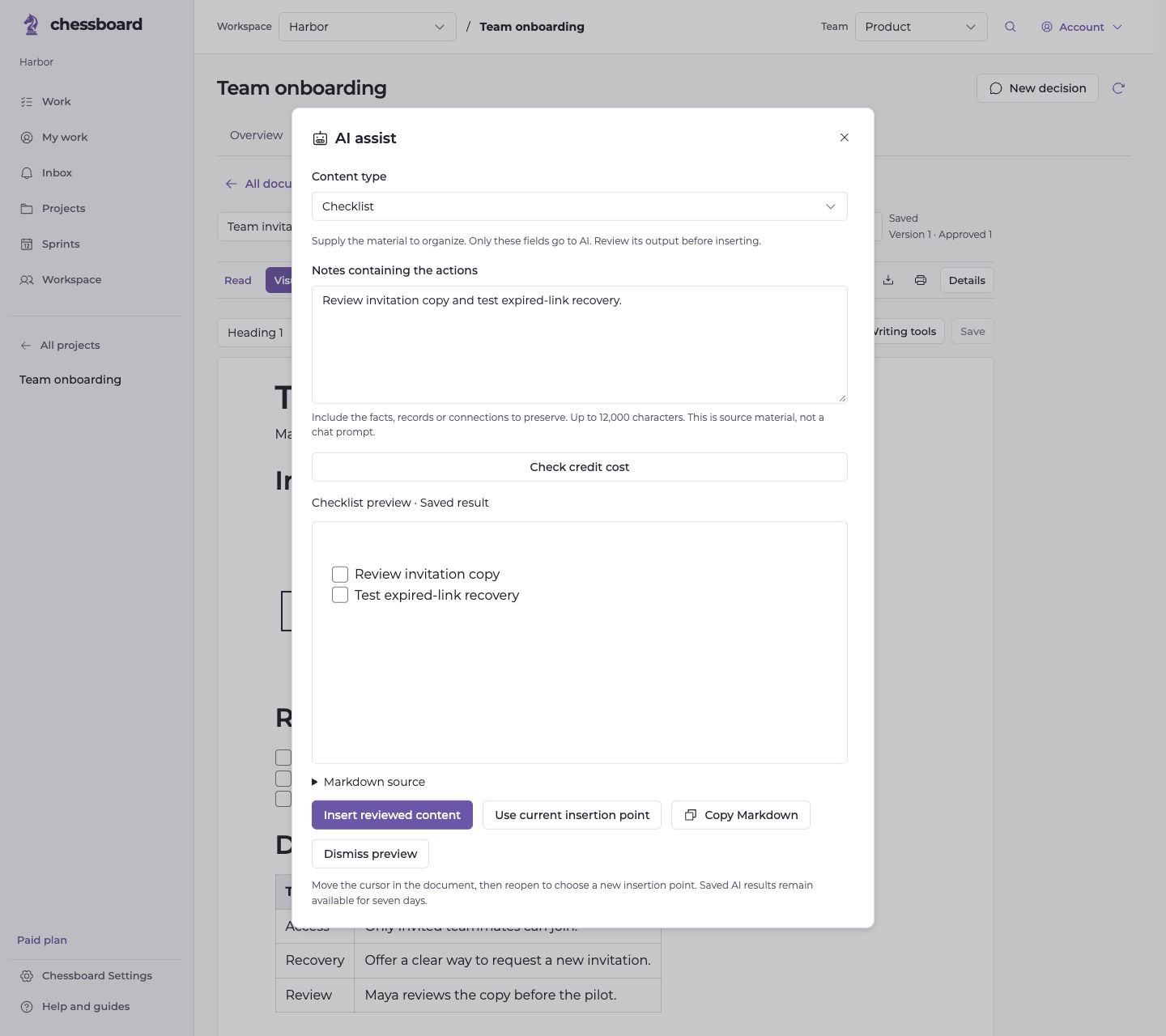
Templates and structured builders format your entries in the browser. AI assist is a separate, optional action for organizing source material into text, lists, tables and supported diagrams.
Check the credit quote, generate a preview and decide whether to insert it. Failed or invalid output returns customer credits; a successful generation uses its quoted credits even if you do not insert it.
Keep work close on a smaller screen.
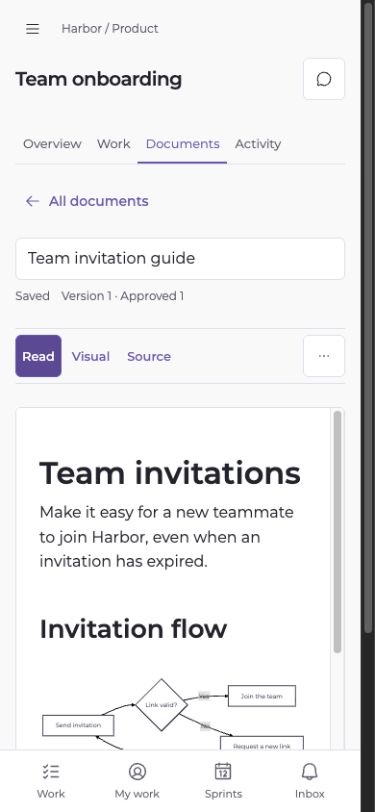
Check your assignments, update a task and read project documents from a phone. The interface adapts its controls to the available space.
Document editing shares Undo across Visual and Source views. Autosave detects a newer saved revision and asks you to compare changes instead of silently overwriting it.
Start with your next project.
Create a Free workspace. Bring the people and context the work needs.